How to view the Course Materials Report from a Course
If you are in a Canvas course, you can view what the course's listed material is in Salesforce quickly using the extension.
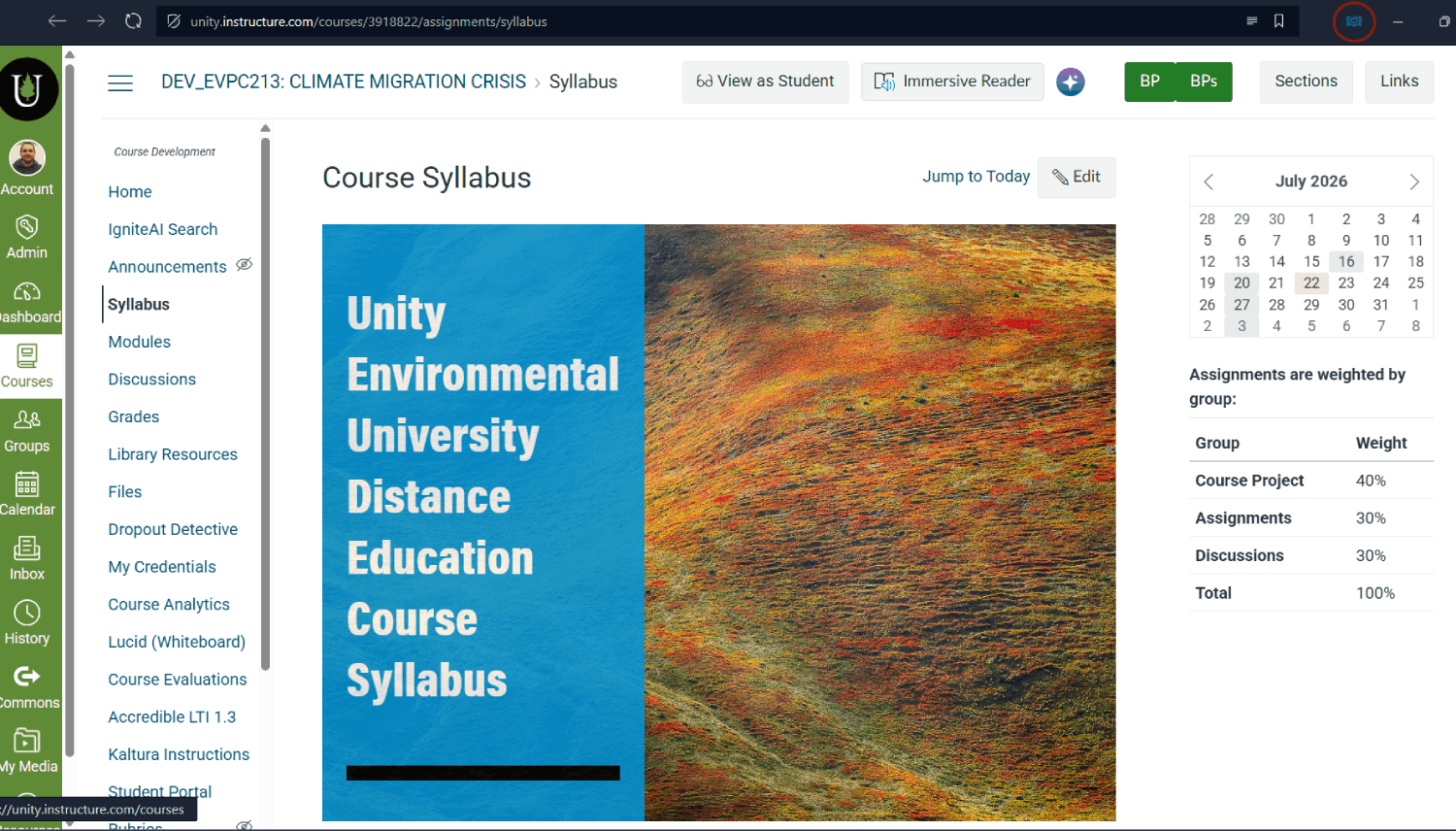
Open the LXD Extension Menu
- In the top bar of your browser, click the little book icon to open up the extension menu
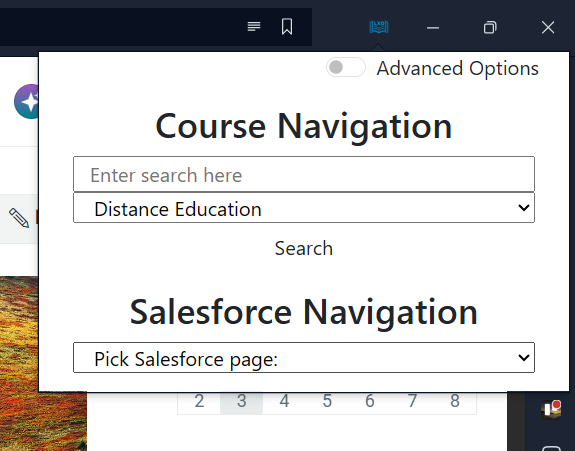
Click the Salesforce Navigation drop down
- In the extension menu, click the Salesforce Navigation dropdown.
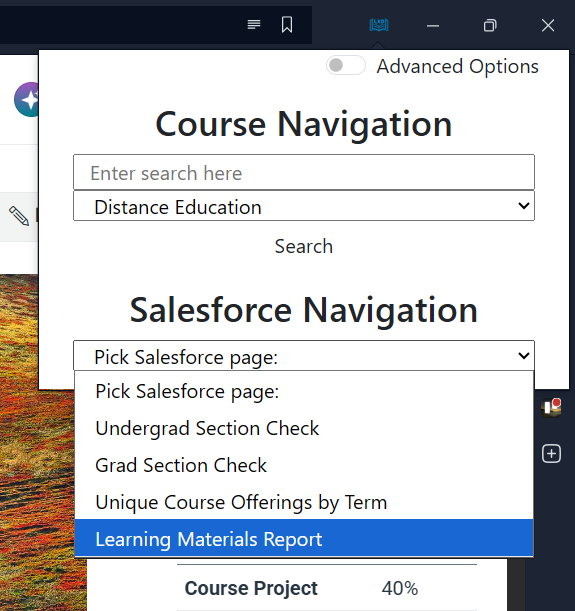
Select 'Learning Materials Report'
- In the dropdown, select 'Learning Materials Report.' This will open a new tab and attempt to take you to the Course Materials Report in Salesforce.
- You may need to log in to the Unity SSO Portal.
- If you are in a Canvas course in your tab when you click this, you will be taken to the report filtered by that course.
- If that course doesn't have any learning materials in Salesforce, you will get zero results.
- If you are not in a course, you will see the report unfiltered.