Download and Install
Please Select your Operating System:
Download the Virtual Ocean for Mac
Double-click the .zip file to open it and then double-click the Virtual Ocean file to launch the simulation.
You will be presented with a screen that says you cannot open the application due to security settings. Follow the steps outlined in the first 60 seconds of this video to open anyway:
Download the Virtual Ocean for Windows
Double-click the VirtualOcean.zip file, and you will be prompted to extract the file.
Click on “Extract All”!
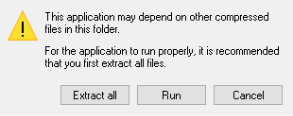
Choose a location to extract the files and then after files are extracted, open that location.
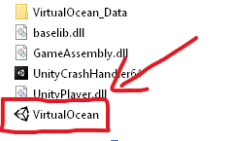
Double-click on the Virtual Ocean icon to launch the simulation.
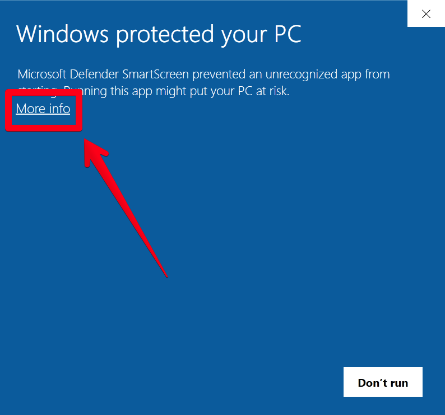
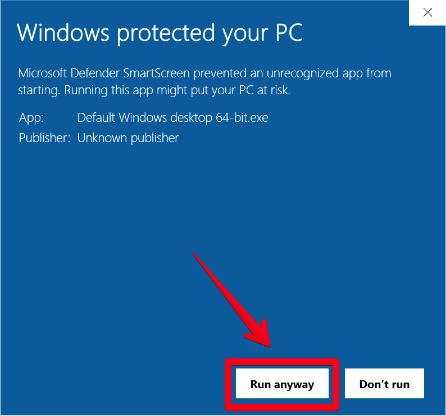
IMPORTANT: You may be presented with a security warning. Please click on “More info” and then click on “Run anyway.”
 |  |
|---|
Getting Started with Virtual Ocean
Once you have downloaded and installed the Virtual Ocean, WATCH THIS VIDEO for more information about how to use it.
Simulation Controls
Choose either Practice or Assessment mode.
In Practice mode, you will be able to move the ship in any direction, and you will receive feedback each time you identify the species of whale and the distance from the ship.
In Assessment mode, you will only be able to move the ship forward along a transect, and you will not receive feedback after you identify each whale.
Camera Movement — Use the mouse to control the camera movement.
Ship Movement — Use the WASD or the arrow keys to move the ship. Left and right movement are only available in Practice mode.
Identify and Count Whales, to see your arrow and click on a whale, RIGHT-CLICK on the screen. This will lock your view in place and allow you to see your arrow and click on any whale or item on the screen. Right click again to move your view.
Click on "MENU" in the lower left-hand corner to return to the main menu at any time.
Identifying and Counting Whales
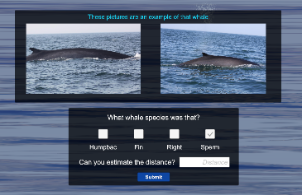
When you click on a whale, you will be prompted to identify the species of whale and the distance from the ship. Your total count will appear in the lower left-hand corner of the screen.